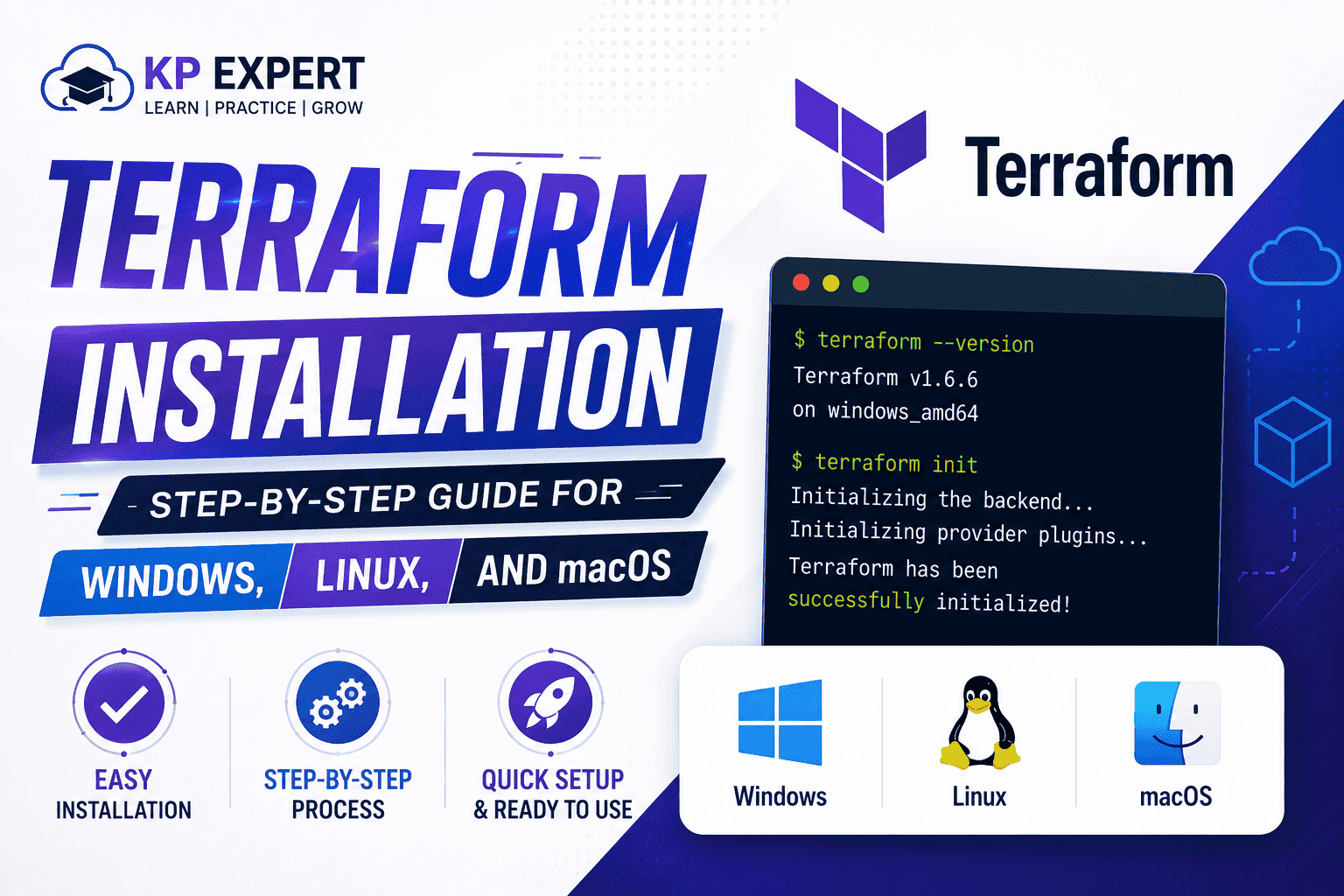
Installing Terraform on Windows, Linux, and macOS
I still remember the first time I had to rebuild a dev environment from scratch because someone left the company and took all the "how I set this up" knowledge with them. Took me two days of clicking around AWS consoles trying to guess what they'd done. That's the kind of pain Terraform exists to prevent.
Terraform is HashiCorp's infrastructure-as-code tool. You write down what your infrastructure should look like in a config file, run a couple commands, and it builds (or fixes, or tears down) the actual resources to match. Works across AWS, Azure, GCP, Oracle Cloud, Kubernetes, Docker, GitHub — pretty much anywhere there's an API to hit.
Below is how to actually get it installed, on all three major operating systems, plus a tiny first project so you're not just staring at a version number wondering what to do next.
Why People Actually Use This
Honestly, the pitch is simple. Your infrastructure stops living in someone's head or a document nobody updates, and starts living in a file you can put in Git.
- You get a preview of every change before it happens
- Teams can review infrastructure changes like pull requests
- Infrastructure becomes version-controlled and reproducible
It's not the only IaC tool out there, but it's the one most job postings mention.
What You Need Before Starting
- Windows 10/11, Linux, or macOS
- Admin (Windows) or sudo (Linux/macOS) access
- Internet connection
- Terminal or command line
Step 1 — Download Terraform
Go to HashiCorp's Terraform download page and pick your platform. Choose the correct version based on your system architecture.
Unzip the file. Inside you'll find a single executable: terraform.
Windows Installation
- Extract the ZIP to a folder (e.g.,
C:\Terraform) - Ensure
terraform.exeexists in that folder - Open System Properties → Advanced System Settings
- Click Environment Variables
- Edit Path under System Variables
- Add
C:\Terraform - Save and restart terminal
Verify installation:
terraform -versionLinux Installation
Ubuntu / Debian
sudo apt update
sudo apt install -y gnupg software-properties-common
sudo apt install terraform
RHEL / CentOS / Fedora
sudo dnf install terraformFor older systems:
sudo yum install terraformVerify:
terraform -versionmacOS Installation
If Homebrew is installed:
brew tap hashicorp/tap
brew install hashicorp/tap/terraform
Verify:
terraform -versionVerify Installation
Run:
terraform -versionOr simply:
terraformIf command list appears, installation is successful.
Your First Terraform Project
Create a project folder:
mkdir terraform-demo
cd terraform-demo
Create a file named main.tf.
Run the following commands:
terraform init
terraform validate
terraform plan
terraform apply
Type yes when prompted to apply changes.
Common Errors & Fixes
- "terraform is not recognized" → PATH issue
- Permission denied → Use admin/sudo
- Old version → Replace binary
- Provider download failed → Check internet/firewall
Best Practices
- Update Terraform regularly
- Use Git for version control
- Separate environments (dev, staging, production)
- Never hardcode secrets
- Use variables
- Always run
terraform planbefore apply - Use
terraform fmtfor formatting - Validate configs before applying
Final Thoughts
Installing Oracle Terraform takes just a few minutes. The real learning begins after installation — working with state files, modules, and automation pipelines. Once you're set up, you're ready to build scalable infrastructure efficiently.